

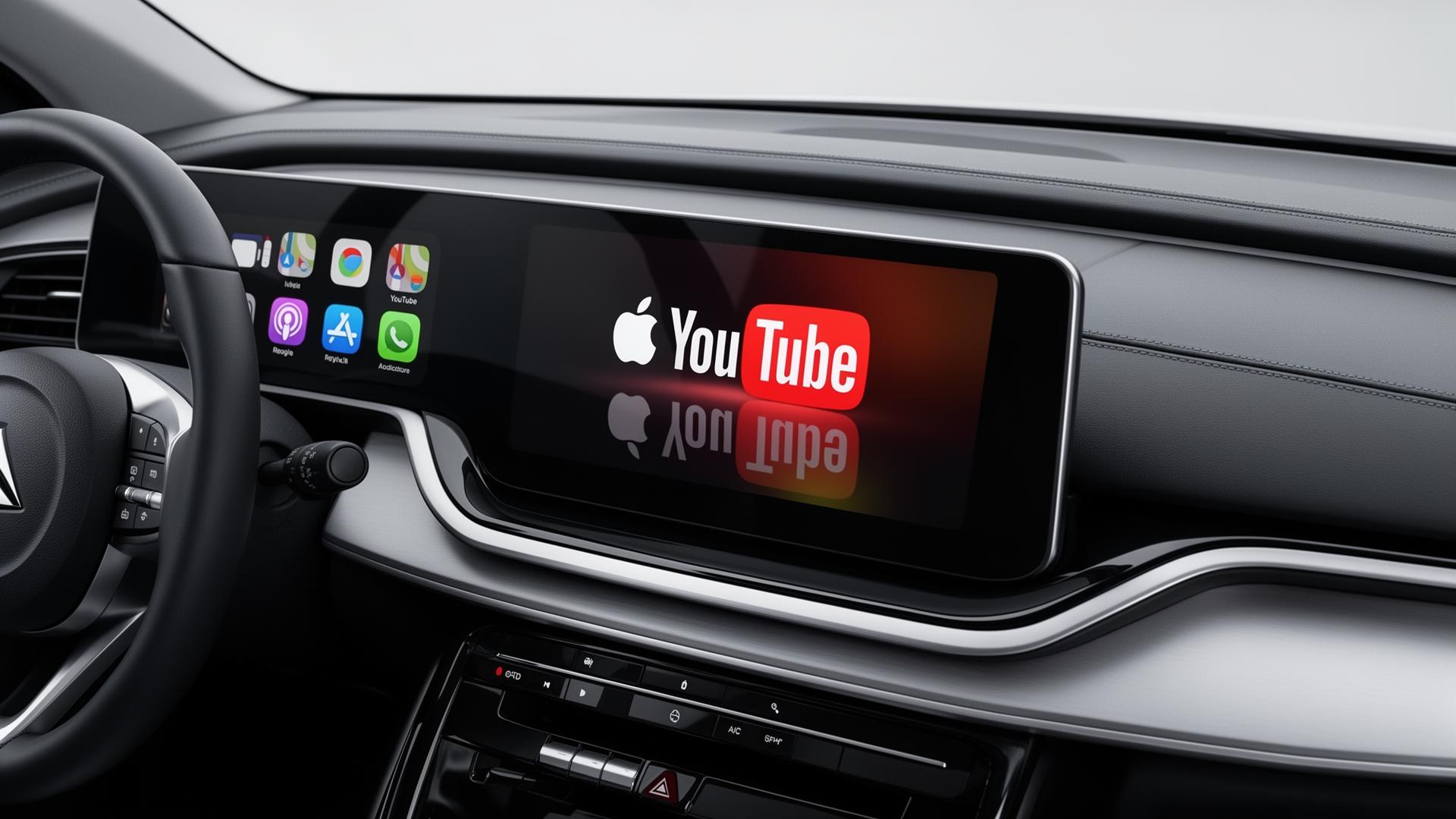
How to Watch YouTube on Apple CarPlay: Complete Guide to Official Support, Safety, and Practical Workarounds
Quick Answer: YouTube video playback is not officially supported on Apple CarPlay due to Apple's strict safety policies prohibiting video apps for drivers. However, YouTube Music works natively for audio content, and several unofficial methods exist for passenger viewing when the vehicle is parked.
What Is Apple CarPlay?
Apple CarPlay is Apple's integrated vehicle infotainment platform that mirrors a simplified version of your iPhone's interface directly onto your car's built-in display. Launched in 2014, CarPlay provides safe, hands-free access to essential apps including navigation (Apple Maps, Google Maps, Waze), communication (Phone, Messages), and audio entertainment (Apple Music, Spotify, Podcasts).
The platform is now available in over 800 vehicle models worldwide and supports both wired USB connections and wireless connectivity via Bluetooth and Wi-Fi. CarPlay's primary design philosophy centers on minimizing driver distraction while providing convenient access to commonly used smartphone features.
Does YouTube Officially Work on Apple CarPlay?
No, YouTube's video application does not officially work on Apple CarPlay. Apple maintains strict guidelines for CarPlay app developers that explicitly prohibit video streaming applications. This restriction applies universally to all video platforms, including Netflix, Disney+, Prime Video, and YouTube.
However, Google's YouTube Music app is fully compatible with CarPlay, providing audio-only access to music, podcasts, and audio content from the YouTube platform. This represents Apple and Google's compromise solution that allows YouTube content consumption without the safety risks of video playback.
Why Apple Restricts Video Playback on CarPlay
Apple's decision to prohibit video applications on CarPlay stems from extensive research on driver distraction and regulatory requirements. Studies by the National Highway Traffic Safety Administration (NHTSA) confirm that visual distraction is among the most dangerous forms of driver impairment, with video content being particularly problematic due to its attention-demanding nature.
The CarPlay Human Interface Guidelines explicitly state that apps must not display video streams, animated graphics, or any content that could divert the driver's visual attention from the road. This policy aligns with distracted driving laws in most countries and helps automakers meet vehicle safety certification requirements.
Apple employs technical measures to enforce these restrictions, including app review processes that reject video apps and system-level blocks that prevent video playback even if an app attempts to circumvent guidelines.
Legal and Safety Considerations
Legal Framework
Most countries and U.S. states have enacted laws prohibiting drivers from viewing video displays while operating a vehicle. Penalties typically include substantial fines, points on driving records, and potential criminal charges if an accident occurs. Rideshare operators should be particularly aware that video distraction could result in deactivation from platforms and liability issues.
Insurance Implications
Using aftermarket devices to enable video playback may void vehicle warranties and could potentially affect insurance claims if such devices are found to have contributed to an accident. Always review your vehicle warranty terms and insurance policy before installing third-party CarPlay modification devices.
Safe Usage Scenarios
- Passengers: Front or rear passengers may safely watch video content without legal restrictions in most areas
- Parked vehicles: Video viewing while parked with the engine off is generally permitted
- Rear-seat entertainment: Many vehicles offer dedicated rear-seat screens designed for passenger video viewing
YouTube Audio: The Official Solution
For drivers who want YouTube content while maintaining full road attention, YouTube Music offers a safe, officially supported solution. The app provides access to over 100 million songs, music videos (audio only), live performances, covers, and remixes—all optimized for the CarPlay interface.
Setting Up YouTube Music on CarPlay
Download YouTube Music
Install YouTube Music from the App Store on your iPhone. A free tier with ads is available, or subscribe to YouTube Premium for ad-free listening and background playback.
Connect to CarPlay
Connect your iPhone to your vehicle via USB cable or wireless CarPlay (if supported). YouTube Music will automatically appear on your CarPlay home screen.
Browse and Play
Launch YouTube Music from CarPlay and browse your library, playlists, or use voice commands via Siri to request specific songs, artists, or genres hands-free.
Unofficial Workarounds for Passengers
Several aftermarket solutions exist that allow YouTube video playback on CarPlay-equipped vehicles. These are popular among rideshare drivers, families with passengers, and users who primarily want entertainment while parked.
Method 1: CarPlay AI Boxes
CarPlay AI boxes (also called CarPlay adapters or dongles) are small devices that plug into your vehicle's USB port and run a modified Android operating system. Popular brands include Carlinkit, AutoSky, Ottocast, and MMB. These devices effectively convert your CarPlay display into an Android tablet, enabling YouTube and other video apps.
| Feature | AI Box | Native CarPlay |
|---|---|---|
| YouTube Video | ✓ Yes | ✗ No |
| Netflix/Streaming | ✓ Yes | ✗ No |
| Official Support | ✗ No | ✓ Yes |
| Warranty Safe | ⚠ Maybe | ✓ Yes |
| Price Range | $80–$300 | Included |
Method 2: Screen Mirroring Adapters
HDMI screen mirroring adapters connect to your CarPlay system and mirror your iPhone's entire screen to the vehicle display. This bypasses CarPlay's app restrictions entirely but typically requires the vehicle to be in park or stationary. Quality varies significantly, and video quality may be limited compared to native apps.
Method 3: Jailbreak-Based Solutions (Advanced)
For technically advanced users, jailbreaking an iPhone can enable CarPlay tweaks that allow video playback. This approach voids your Apple warranty, exposes your device to security vulnerabilities, and may cause system instability. We strongly advise against this method for most users due to the significant risks involved.
Troubleshooting Common Issues
CarPlay AI Box Problems
- No video output: Ensure the device is fully powered. Some boxes require 30-60 seconds to boot. Check that your vehicle's CarPlay is active and connected.
- Choppy playback: Connect to a stable Wi-Fi hotspot for streaming. Internal storage options allow offline viewing for smoother playback.
- Audio sync issues: Restart both the AI box and your vehicle's infotainment system. Check for firmware updates from the manufacturer.
- Touch response lag: This is common with lower-cost boxes. Premium models (Carlinkit 4.0, Ottocast) offer better touch responsiveness.
Screen Mirroring Issues
- Black screen: Some content is protected by DRM and cannot be mirrored. Netflix, Disney+, and some YouTube content may show black screens.
- Poor resolution: Ensure your adapter supports at least 1080p output. Cheap cables often limit resolution to 480p.
- Intermittent connection: Use high-quality certified cables. Damaged or low-quality cables cause frequent disconnections.
Frequently Asked Questions

Samay's Controversy
Navigate Samay Raina's viral moments in this chaos simulator!
Play Now
Carry Ki Gaaliyan
Unleash CarryMinati's iconic roasts in this rage-clicking madness!
Play Now
Slap Dhruv Rathee
The ultimate stress buster! Tap to slap in this addictive clicker.
Play Now
Arjun's Comments
Survive Bollywood's most savage comment section trolls!
Play Now
CID Laash Game
Find the dead body before Daya breaks the door! 🚪
Play Now
Japnaam Clicker
Click your way to enlightenment with Baba's blessings!
Play Now
Bijli Ka Bill
Help Ashish pay his electricity bill in this hilarious clicker!
Play Now
Doraemon All Gadgets
Explore all of Doraemon's magical gadgets!
Play Now
Yashu Di Balle Balle
Hit sixes and score big in this cricket clicker!
Play Now