

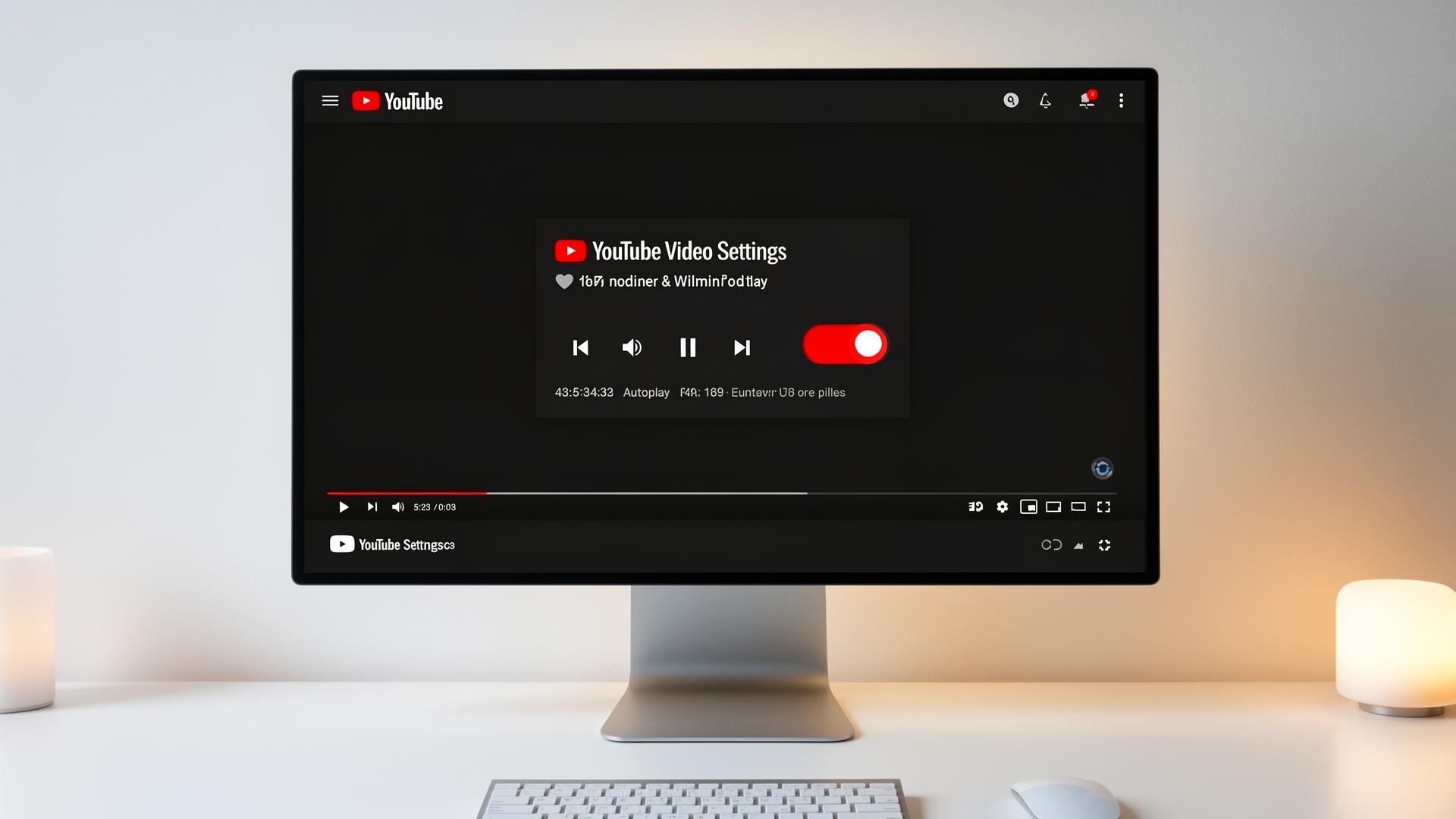
How to Stop YouTube from Auto Queuing: The Complete Guide
Quick Answer
To stop YouTube from auto queuing videos, toggle off the Autoplay switch located in the "Up Next" sidebar on desktop or in Settings → Autoplay on mobile devices. This prevents the next video from playing automatically when your current video ends.
What Is YouTube Auto Queue?
YouTube's auto queue feature automatically selects and plays the next video when your current one finishes. This behavior is controlled by the Autoplay setting, which YouTube enables by default to maximize viewer engagement and watch time on the platform.
It's crucial to understand that YouTube uses several distinct mechanisms that can cause videos to play automatically:
- Autoplay: Plays a suggested video after your current one ends
- Queue Feature: A manual playlist you create by clicking "Add to queue"
- Playlist Autoplay: Automatically advances through playlist videos
- Suggested Videos: The "Up Next" recommendations (don't auto-play if autoplay is off)
YouTube Playback Logic Flow
Why Does YouTube Auto Queue Videos?
YouTube's business model depends on keeping users engaged for as long as possible. The platform's recommendation algorithm analyzes billions of data points including your watch history, search patterns, subscriber list, and viewing duration to predict which video will keep you watching next.
Auto-queuing serves multiple purposes for YouTube: it increases total watch time metrics, improves ad revenue opportunities, and keeps users within the YouTube ecosystem rather than navigating away. For users, this can be convenient when binge-watching content but frustrating when you want to pause your session or maintain control over what you watch.
Pro Tip: Your autoplay setting syncs across devices when you're logged into your Google account. Change it once while signed in, and it applies everywhere.
How to Stop Auto Queue on Desktop
Disabling autoplay on desktop browsers is straightforward once you know where to look. YouTube provides a toggle directly in the video player interface, making it accessible while watching any video.
Open Any YouTube Video
Navigate to youtube.com and start playing any video. The autoplay toggle only appears when a video is active.
Locate the "Up Next" Sidebar
Look to the right of the video player for the "Up Next" section showing suggested videos.
Toggle Off Autoplay
Click the blue toggle switch at the top of "Up Next." When gray, autoplay is disabled.
Verify the Setting Saved
Refresh the page and check that the toggle remains off. If logged in, this persists across sessions.
Browser-Specific Considerations
Some browser extensions can interfere with YouTube's settings persistence. If your autoplay preference keeps resetting, try disabling ad-blockers temporarily or clearing your browser cache. Additionally, incognito or private browsing modes won't retain your autoplay preference since cookies aren't saved.
Disabling Auto Queue on Android & iPhone
Mobile devices require accessing YouTube's app settings rather than the video player interface. The process is similar on both Android and iOS devices, though menu layouts may vary slightly between app versions.
Android App Steps
Tap Your Profile Picture
Open the YouTube app and tap your profile icon in the top-right corner.
Go to Settings
Select "Settings" from the menu that appears.
Find Autoplay Options
Tap "Autoplay" under the General section to access playback controls.
Disable Both Toggles
Turn off "Autoplay next video" and optionally "Autoplay on Home" for full control.
iPhone & iPad Steps
On iOS devices, the path is identical: Profile → Settings → Autoplay → Toggle off. iPhone users should also check Settings → YouTube → Background App Refresh if videos seem to resume unexpectedly when returning to the app.
Device-Specific Autoplay Solutions
Stopping Auto Queue on Smart TVs & Gaming Consoles
Smart TV and gaming console interfaces vary significantly by manufacturer, but YouTube's app settings generally follow a consistent structure. The key is finding the settings or gear icon within the YouTube app itself, not your device's system settings.
General Smart TV Instructions
- Open the YouTube app and navigate to your profile (usually left sidebar)
- Select "Settings" or the gear icon
- Look for "Autoplay" or "Playback" options
- Toggle off "Autoplay next video" or similar setting
PlayStation & Xbox
On gaming consoles, access the YouTube app, press the options/menu button on your controller, navigate to Settings, and find the Autoplay toggle. Note that some older Smart TV models may have the YouTube app with limited settings—updating the app often resolves this.
⚠️ Important: Playlist autoplay is a separate setting. Even with autoplay off, videos within a playlist will continue to the next track. To stop this, exit the playlist or disable playlist autoplay specifically.
Advanced Troubleshooting & Fixes
If YouTube keeps ignoring your autoplay preferences, several underlying issues could be responsible. Here are proven solutions for persistent problems that affect users across all platforms.
Clear Cache and App Data
Corrupted cache can cause settings to fail. On mobile, go to your device settings, find the YouTube app, and clear both cache and data. On desktop, clear your browser's cookies and cached files specifically for youtube.com.
Check Account Login Status
Logged-out users get YouTube's default settings, which include autoplay enabled. Ensure you're signed into your Google account by checking the profile icon. If it shows "Sign In," your preferences aren't being saved to your account.
Test in Incognito Mode
Open YouTube in an incognito or private window without signing in. If autoplay behaves correctly there but not in your regular browser, an extension or cached setting is likely the culprit. Disable extensions one by one to identify conflicts.
Restricted Mode Conflicts
YouTube's Restricted Mode can sometimes override user preferences. Check Settings → Restricted Mode and toggle it off if enabled. This is especially common on shared or managed devices in schools or workplaces.
Privacy Note: Disabling watch history affects recommendations but doesn't stop autoplay. For complete control, disable both autoplay AND pause watch history if you want minimal tracking and no auto-suggestions.
Common Myths vs Real Solutions
Misinformation about YouTube settings leads many users to try ineffective solutions. Here's the truth about commonly believed myths and what actually works.
- Myth: Clearing watch history stops autoplay. Fact: History only affects recommendations; autoplay is a separate toggle.
- Myth: YouTube Premium removes autoplay. Fact: Premium adds features but doesn't change autoplay behavior—you still need to disable it manually.
- Myth: The setting changes randomly. Fact: Usually caused by cache issues, being logged out, or browser extensions resetting preferences.
- Myth: You need an extension to stop autoplay. Fact: Native YouTube settings work perfectly when properly configured.
Frequently Asked Questions
Samay's Controversy
Navigate Samay Raina's viral moments in this chaos simulator!
Play Now
Carry Ki Gaaliyan
Unleash CarryMinati's iconic roasts in this rage-clicking madness!
Play Now
Slap Dhruv Rathee
The ultimate stress buster! Tap to slap in this addictive clicker.
Play Now
Arjun's Comments
Survive Bollywood's most savage comment section trolls!
Play Now
CID Laash Game
Find the dead body before Daya breaks the door! 🚪
Play Now
Japnaam Clicker
Click your way to enlightenment with Baba's blessings!
Play Now
Bijli Ka Bill
Help Ashish pay his electricity bill in this hilarious clicker!
Play Now
Doraemon All Gadgets
Explore all of Doraemon's magical gadgets!
Play Now
Yashu Di Balle Balle
Hit sixes and score big in this cricket clicker!
Play Now