

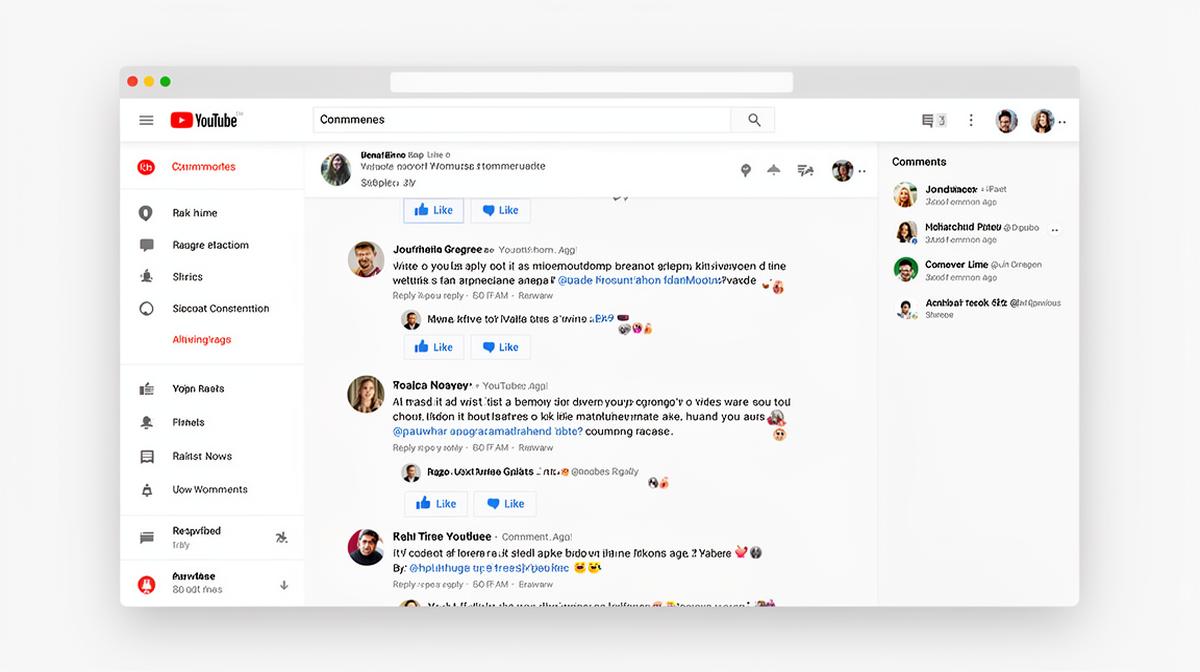
How to Export All YouTube Comments: The Complete Guide for Creators & Researchers
To export YouTube comments, you can use third-party tools like YouTube Comment Exporter or Exportcomments.com for quick CSV downloads, leverage the YouTube Data API v3 for programmatic access, or manually copy comments from YouTube Studio. Third-party tools offer the easiest solution for most users, supporting exports of up to 50,000+ comments in CSV, JSON, or Excel formats.
What Is YouTube Comment Exporting?
Exporting YouTube comments refers to the process of downloading all viewer comments from a video into a structured file format like CSV, JSON, or Excel. This data extraction enables creators, marketers, researchers, and community managers to analyze audience feedback, conduct sentiment analysis, identify trends, and maintain records of community engagement outside of the YouTube platform.
The exported data typically includes the comment text, author username, timestamp, like count, and reply threads. Advanced exports may also capture user channel IDs, comment IDs for reference, and moderation status flags.
Why Export YouTube Comments?
Understanding why creators and professionals export comments helps determine the best method for your specific use case. Here are the primary reasons for exporting YouTube comment data:
- Sentiment Analysis: Analyze audience reactions to content, products, or campaigns using natural language processing tools
- Content Research: Identify frequently asked questions, content requests, and topic suggestions from your audience
- Community Moderation: Review comments offline, identify patterns in spam or harassment, and develop moderation policies
- Academic Research: Conduct studies on online discourse, engagement patterns, and digital communication
- Brand Monitoring: Track mentions, feedback, and customer sentiment across multiple videos or channels
- Legal Documentation: Preserve comment evidence for copyright disputes, defamation cases, or compliance audits
- Engagement Metrics: Calculate engagement rates, response times, and community growth over time
Official YouTube Studio Options
While YouTube doesn't provide a dedicated "Export Comments" button, the platform offers limited comment management capabilities through YouTube Studio. Understanding these limitations helps you decide when third-party tools become necessary.
YouTube Studio Comments Tab
The Comments section in YouTube Studio allows channel owners to view, reply to, moderate, and filter comments. You can see comments across all videos or filter by specific videos, held for review, or likely spam. However, there's no built-in export functionality—you cannot download these comments to a file.
Google Takeout
Google Takeout lets you download your YouTube data, including your own comments on other videos and your channel's metadata. However, it does not include comments left by viewers on your videos. This makes Takeout unsuitable for comment export purposes.
Manual Copy-Paste Method
Navigate to Video Comments
Open the video on YouTube and scroll to load all comments. For videos with thousands of comments, this can be time-consuming.
Select and Copy
Manually select comment text and copy to your clipboard. Repeat for each comment—impractical for large volumes.
Paste into Spreadsheet
Paste copied comments into Excel or Google Sheets. Format as needed. This method lacks metadata like timestamps and likes.
The manual method is only viable for videos with fewer than 50 comments. For anything larger, third-party tools or API access are essential.
Comment Export Workflow
Third-Party Export Tools
Third-party tools provide the most accessible solution for exporting YouTube comments without technical knowledge. These services connect to YouTube's API and present comment data through user-friendly interfaces.
YouTube Comment Exporter (Browser Extension)
This Chrome extension adds an export button directly to YouTube video pages. Simply install the extension, navigate to any video, and click "Export Comments" to download a CSV file. It supports exporting up to 10,000 comments per video in the free version, with premium tiers offering higher limits.
Exportcomments.com
A web-based tool that requires only pasting a video URL. It processes comments server-side and emails you the download link when complete. Supports CSV and Excel formats with options to include or exclude replies. Free tier allows 100 comments; paid plans export unlimited comments.
Apify YouTube Comment Scraper
A more powerful solution for developers and researchers. Apify's actor scrapes comments at scale across multiple videos, handles pagination automatically, and outputs to JSON, CSV, or direct database connections. Pricing is usage-based with a free tier for testing.
YTCommentDownloader
A standalone desktop application for Windows and Mac that exports comments offline. Useful for users concerned about data privacy, as processing happens locally rather than on third-party servers. Supports batch processing of multiple video URLs.
API-Based Export Methods
For developers and power users requiring full control over the export process, the YouTube Data API v3 provides programmatic access to comment data. This method offers the most flexibility but requires technical implementation.
Setting Up YouTube Data API Access
Create a Google Cloud Project
Go to console.cloud.google.com, create a new project, and enable the YouTube Data API v3 from the API Library.
Generate API Credentials
Navigate to Credentials, create an API key, and optionally restrict it to YouTube Data API for security.
Use the commentThreads.list Endpoint
Make GET requests to retrieve comments with parameters for videoId, maxResults (up to 100), and pageToken for pagination.
Handle Pagination
Process the nextPageToken in responses to fetch all comments. Loop until no nextPageToken is returned.
Export to Desired Format
Parse the JSON responses and convert to CSV, Excel, or database entries using your preferred programming language.
API Quotas and Limitations
The YouTube Data API has a default quota of 10,000 units per day. Each commentThreads.list request costs 1 unit, allowing approximately 10,000 requests or around 1 million comments daily. For larger volumes, you can request quota increases through Google Cloud Console.
Tool Comparison Chart
Selecting the right export method depends on your technical skills, volume requirements, and budget. The following comparison helps you make an informed decision.
| Tool/Method | Ease of Use | Max Comments | Formats | Cost |
|---|---|---|---|---|
| Manual Copy | Very Easy | ~50 | Text only | Free |
| Browser Extensions | Easy | 10,000+ | CSV, JSON | Free / Premium |
| Exportcomments.com | Easy | Unlimited | CSV, Excel | $5-20/export |
| Apify Scraper | Moderate | Unlimited | JSON, CSV, DB | Usage-based |
| YouTube Data API | Technical | Unlimited* | Any format | Free (quota) |
Export Method Ratings
Privacy & Compliance Considerations
Exporting YouTube comments involves handling user-generated content that may contain personally identifiable information (PII). Understanding your legal obligations ensures compliant data handling practices.
YouTube comments are public content, but exporting and storing them triggers data protection obligations under GDPR, CCPA, and similar regulations. Ensure you have a legitimate purpose and appropriate data handling policies.
Key Compliance Areas
- Terms of Service: Only use official API access or tools that comply with YouTube's Terms of Service. Unauthorized scraping may result in account termination.
- Data Minimization: Export only the data you actually need. Avoid collecting unnecessary metadata like user channel IDs unless required.
- Storage Security: Store exported comments securely with encryption. Implement access controls and audit logs for sensitive datasets.
- Retention Policies: Define how long you'll keep exported data. Delete comments when they're no longer needed for your stated purpose.
- User Rights: If contacted by a commenter requesting their data be removed, have a process to honor such requests promptly.
Best Practices for Comment Export
Maximize the value of your exported comment data while maintaining ethical standards and technical efficiency.
- Test with Small Batches First: Before exporting thousands of comments, test your chosen tool or script with a video containing 50-100 comments to verify data quality and format.
- Include Timestamps: Always export comment timestamps for temporal analysis, trend identification, and engagement pattern research.
- Preserve Thread Structure: Export reply relationships (parentId) to maintain conversation context for sentiment analysis and community insights.
- Clean Data Before Analysis: Remove spam, duplicates, and bot comments before conducting serious analysis. Many tools include spam filtering options.
- Document Your Process: Maintain records of export dates, tools used, and any data transformations applied for research reproducibility.
- Respect Rate Limits: When using the API directly, implement exponential backoff for rate limit errors and avoid aggressive polling.
Frequently Asked Questions
Yes, you can export all YouTube comments using several methods: YouTube Studio's built-in moderation tools (limited functionality), third-party browser extensions and web tools like YouTube Comment Exporter, or programmatically via the YouTube Data API v3. Each method has different capabilities regarding comment volume, format options, and data completeness.
YouTube Studio offers limited comment management features but doesn't provide a direct "export all comments" button. Channel owners can view and moderate comments, but bulk export requires using the YouTube Data API or approved third-party tools. Google Takeout includes some channel data but doesn't export viewer comments comprehensively.
Using the official YouTube Data API to export comments is legal and compliant with YouTube's Terms of Service. Third-party tools that use the API properly are also acceptable. However, scraping comments without API access may violate YouTube's Terms of Service. Always ensure any tool you use respects YouTube's guidelines and user privacy regulations like GDPR.
Yes, most comment export tools support CSV format, which can be opened directly in Excel or Google Sheets. Popular tools like YouTube Comment Exporter, Exportcomments.com, and API-based solutions all offer CSV export. Some also support JSON and Excel (.xlsx) formats for more advanced data analysis needs.
Yes, the YouTube Data API v3 provides the commentThreads.list endpoint that allows developers to retrieve comments from any public video. You'll need a Google Cloud project with the YouTube Data API enabled and an API key. The API returns up to 100 comments per request with pagination support for larger datasets.